
Quotex Affiliate Program: Earn Commissions in India
How to Get the Quotex App on Your Phone
Most Indian traders using Quotex prefer the mobile app over the browser version, mostly for convenience when checking charts on the go. This guide walks through the download process for both Android and iOS, explains what the app actually offers, and points out where it differs from the web-based platform. If you're ready to try the platform after reading, you can open a Quotex account and test the interface with a demo balance first.
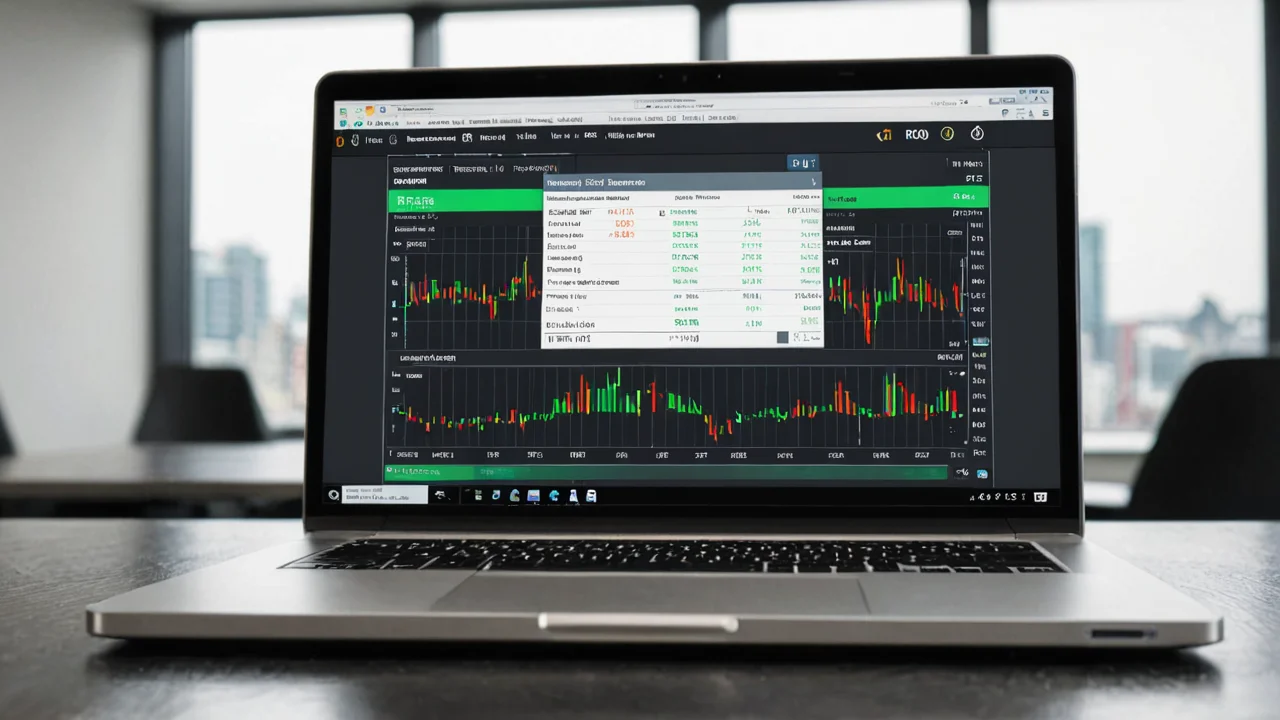

Quotex App Download Options For Indian Users
Quotex offers its trading interface as a downloadable app rather than through third-party platforms like MT4 or MT5. This is a proprietary build, meaning the company designed the whole experience, from charts to order execution, in-house rather than licensing an external trading engine.
For Android users, the app is listed on the Google Play Store under the name "Quotex - Investing Platform," with Stonetrade Ltd. shown as the publisher contact. This is one of several offshore entities connected to the platform, alongside ON SPOT LLC, which is more commonly cited as the operator of Quotex itself. iOS users can typically find a corresponding listing in the Apple App Store, though availability sometimes fluctuates by region and device compatibility.
- Android: available via Google Play Store search or direct link from the official site
- iOS: available via Apple App Store, subject to regional listing changes
- APK file: sometimes offered directly from the official website as an alternative to Play Store
If the Play Store listing isn't showing up on your device for any reason, the official Quotex website usually provides a direct APK download link as a backup option.
Key Takeaway: Stick to the official Google Play Store, Apple App Store, or the verified official website when downloading. Avoid random APK files shared through unofficial channels, forums, or messaging apps.
Smoother mobile trading
Native iOS and Android, no web wrappers.
Step By Step Installation Guide
Getting the app running on your phone doesn't take long once you know where to look. Here's a straightforward walkthrough for Android devices.
First, open the Google Play Store and search for "Quotex" directly, or use the download link on the official Quotex website that redirects to the correct listing. Tap install and let it download like any standard app.
Second, once installed, open the app and you'll land on a login screen. If you already have an account from the web version, you can sign in with the same credentials. New users will need to go through registration first, which mirrors the same steps as the desktop signup process.
Third, grant any permissions the app requests, usually just storage and notifications, then you're taken straight to the trading dashboard.
For iOS, the process is nearly identical: search the App Store, download, install, and log in. There's no separate account system between platforms since Quotex syncs everything through a single login tied to your registered email.
- Search and download from official app stores only
- Log in with existing credentials or complete new registration
- Allow basic permissions (notifications, storage)
- Access demo or live account directly from the dashboard
Open an account in minutes
No KYC delays — start trading the same day.
Quotex App Download APK Alternative Method
Some Indian users prefer downloading the APK file directly rather than going through Google Play, often because of device restrictions or personal preference. Quotex reportedly makes an APK version available through its own website as an alternative installation route.
This method requires enabling "install from unknown sources" in your Android settings before the file will run. It's worth being cautious here: only use the APK link posted on Quotex's own official domain, never a copy shared elsewhere, since fake APK files are a known risk with any trading app that has this kind of alternative download option.
- Enable unknown sources in phone settings before installing
- Download only from the verified official Quotex website link
- Check file size and publisher details match what's expected before installing
- Avoid APKs shared via social media, forums, or third-party app stores
Key Takeaway: The APK route works fine as a backup, but it shifts the responsibility for verifying authenticity onto you. When in doubt, the Play Store or App Store remains the safer default.
App Features Compared To The Web Platform
The mobile app isn't a stripped-down version of the desktop experience. It carries over the same proprietary interface, including the fixed-time trading structure Quotex is built around, and independent testing has shown trade execution completing in under one second under normal conditions on the platform generally.
Traders can access the same range of underlying markets on mobile as they would on the browser version, including forex pairs, commodities, indices, and cryptocurrencies. Chart tools, timeframes, and order placement all function within the app itself without needing to switch to a desktop.
One practical difference is screen real estate. Chart analysis naturally feels more cramped on a phone screen compared to a wide monitor, so traders doing heavy technical analysis sometimes still prefer the web version for that reason alone. But for placing trades, checking balances, and monitoring open positions throughout the day, the app tends to be faster and more convenient.
- Same underlying markets available on both app and web
- Fixed-time trading mechanics identical across platforms
- Execution speed reported as fast (under one second in independent testing)
- Smaller screen size is the main tradeoff versus desktop charting
Both versions connect to the same account, so switching between your phone and a browser mid-session doesn't cause any disruption to open trades or balance history.
App ratings to compare
Read recent reviews before you commit.
Using The Demo Account Inside The App
Quotex offers a free demo account that works the same way whether you're on mobile or desktop. This is worth using before committing real funds, especially if you're new to fixed-time trading or just want to get comfortable with the app's layout.
Inside the app, switching between demo and live balances is usually just a tap away from the main trading screen. This makes it easy to practice strategies, test how the interface handles order placement, or simply get a feel for chart navigation without financial risk.
- Demo account uses virtual funds, no deposit required
- Switching between demo and live mode is instant within the app
- Useful for testing execution speed and interface responsiveness before going live
For Indian users specifically, this is a reasonable way to evaluate whether the mobile experience suits your trading style, given that Quotex operates as an offshore platform without SEBI oversight. Testing the interface on demo first lets you judge the mechanics without any financial commitment attached.
Deposit And Withdrawal Access Through The App
The mobile app carries the same account functions as the web version when it comes to managing funds. Reviews focused on Indian users mention options like UPI, bank cards, e-wallets, and cryptocurrencies among the deposit methods commonly advertised, though exact availability can shift over time and isn't something we can confirm with full certainty from official documentation.
Quotex has stated that it doesn't charge fees on deposits or withdrawals, which applies regardless of whether you're using the app or the browser. The minimum deposit for live accounts is commonly cited at around $10 across independent reviews.
- Deposit and withdrawal menus accessible directly from app dashboard
- Same payment methods generally apply across app and web
- No stated fees on deposits or withdrawals according to platform claims
Keep in mind that some reviews and watchdog reports have flagged complaints about withdrawal delays or blocked accounts. This isn't unique to the app itself, but it's worth being aware of before moving larger sums through any payment method, mobile or otherwise.
Troubleshooting Common App Issues
A few recurring problems come up when Indian users try installing or running the Quotex app, and most have simple fixes.
If the app won't download from Google Play, check that your device meets the basic OS requirements and that you have enough free storage. Clearing the Play Store cache sometimes resolves listing issues too.
Login problems after installation are usually tied to typos in credentials or an unverified email from registration. Double-check your login details match exactly what you used during signup on the web version, since the same account works across both platforms.
- App won't install: check storage space and OS compatibility
- Login fails: verify email confirmation was completed during signup
- App crashes or freezes: try reinstalling or clearing cache
- APK won't open: confirm "unknown sources" is enabled in settings
If none of these steps help, reaching out through the platform's support channels directly is the next step, since account-specific issues usually need to be resolved on a case-by-case basis.
Frequently Asked Questions
-
Is the Quotex app available on both Android and iOS in India?
A: Yes, Quotex offers apps for both Android through Google Play and iOS through the Apple App Store, and Indian users can access either version alongside the browser-based platform.
-
Do I need a different account to use the app versus the website?
A: No. Quotex uses a single login system, so the same credentials work whether you're accessing your account through the app or a web browser.
-
Is downloading the Quotex APK file safe?
A: It can be, as long as you download it only from the official Quotex website. Avoid APK files shared through third-party sites, forums, or messaging apps, since these carry a higher risk of being tampered with.
-
Does the mobile app have fewer features than the web platform?
A: No, the core trading features, including chart tools, order execution, and access to the same markets, are consistent across both versions. The main difference is screen size, which affects how comfortable detailed chart analysis feels on mobile.
-
Can I practice with a demo account inside the app before trading with real money?
A: Yes, the free demo account is available within the app and lets you switch between demo and live balances without needing to reinstall or use a separate login.